1
Open the macOS help entry
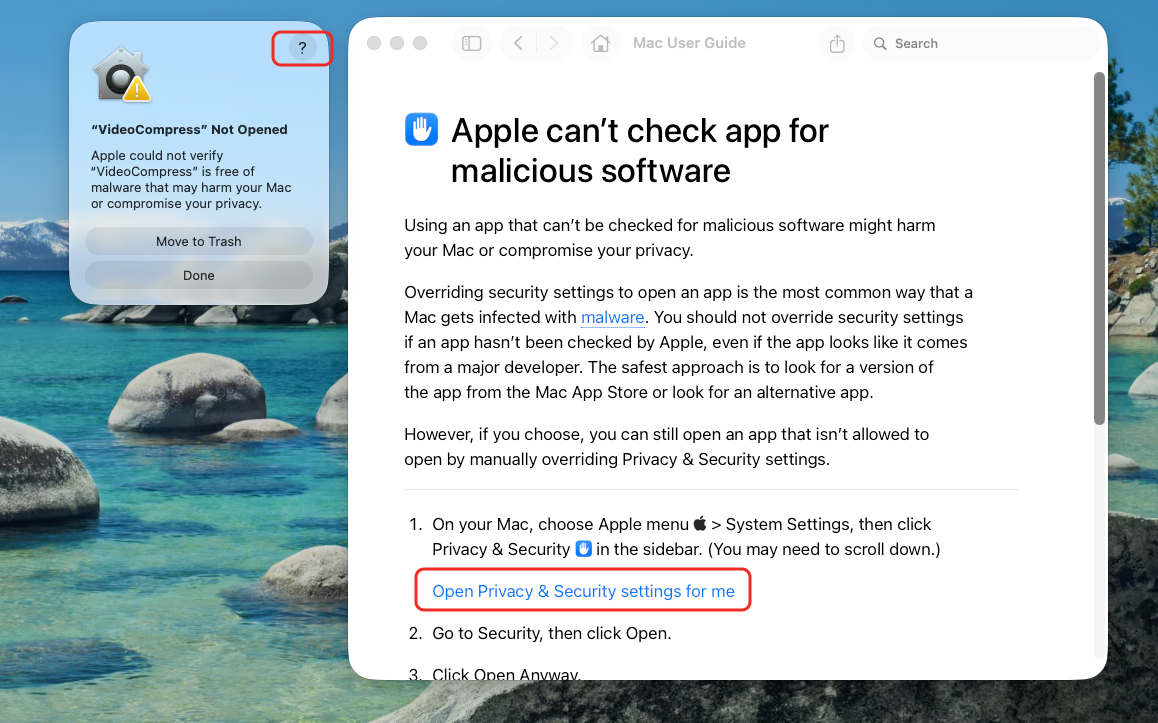
When macOS shows the "VideoCompress" Not Opened warning, click the ? button. In the Mac User Guide window, choose the link that opens Privacy & Security settings.
If macOS says it cannot verify VideoCompress, or blocks the app because the developer cannot be verified, use one of the approval methods below.
This is the most direct path when macOS has already shown the app warning.
When macOS shows the "VideoCompress" Not Opened warning, click the ? button. In the Mac User Guide window, choose the link that opens Privacy & Security settings.
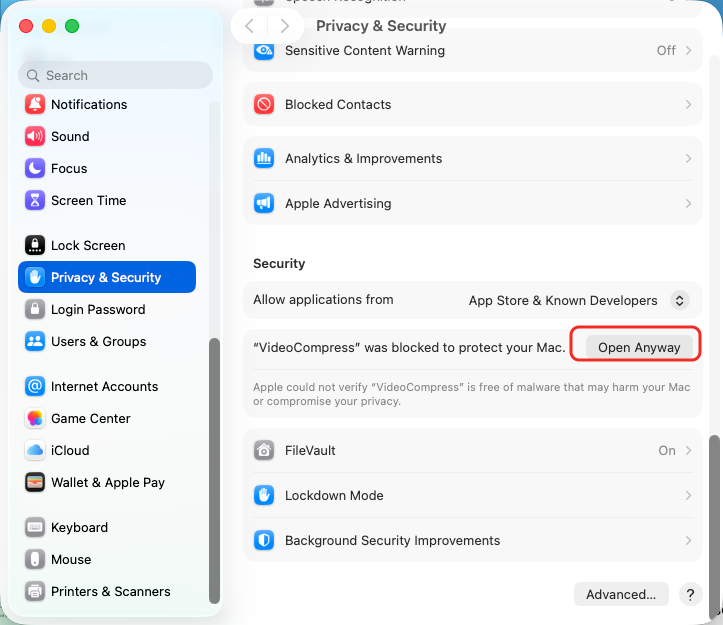
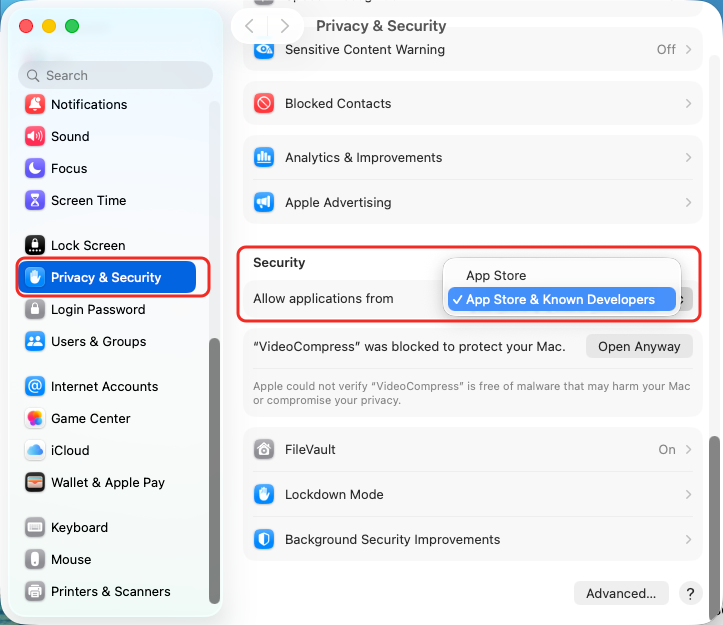
In System Settings, open Privacy & Security, scroll to Security, and click Open Anyway beside the VideoCompress message.
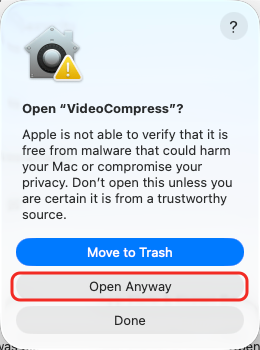
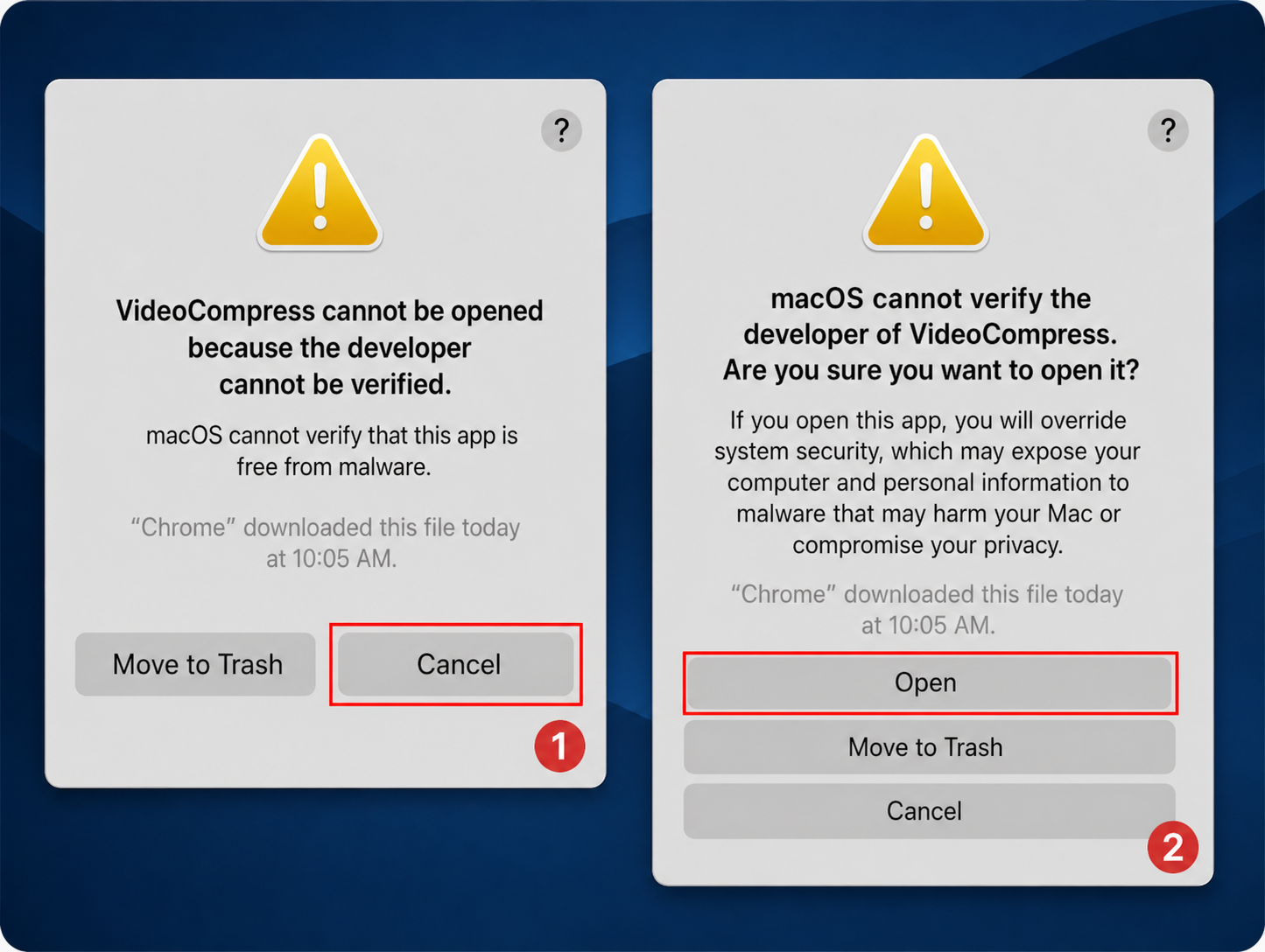
When macOS asks again, click Open Anyway. VideoCompress will then open normally, and you should not need to repeat these steps next time.
macOS also lets you approve an app directly from Finder without changing the Privacy & Security screen first.
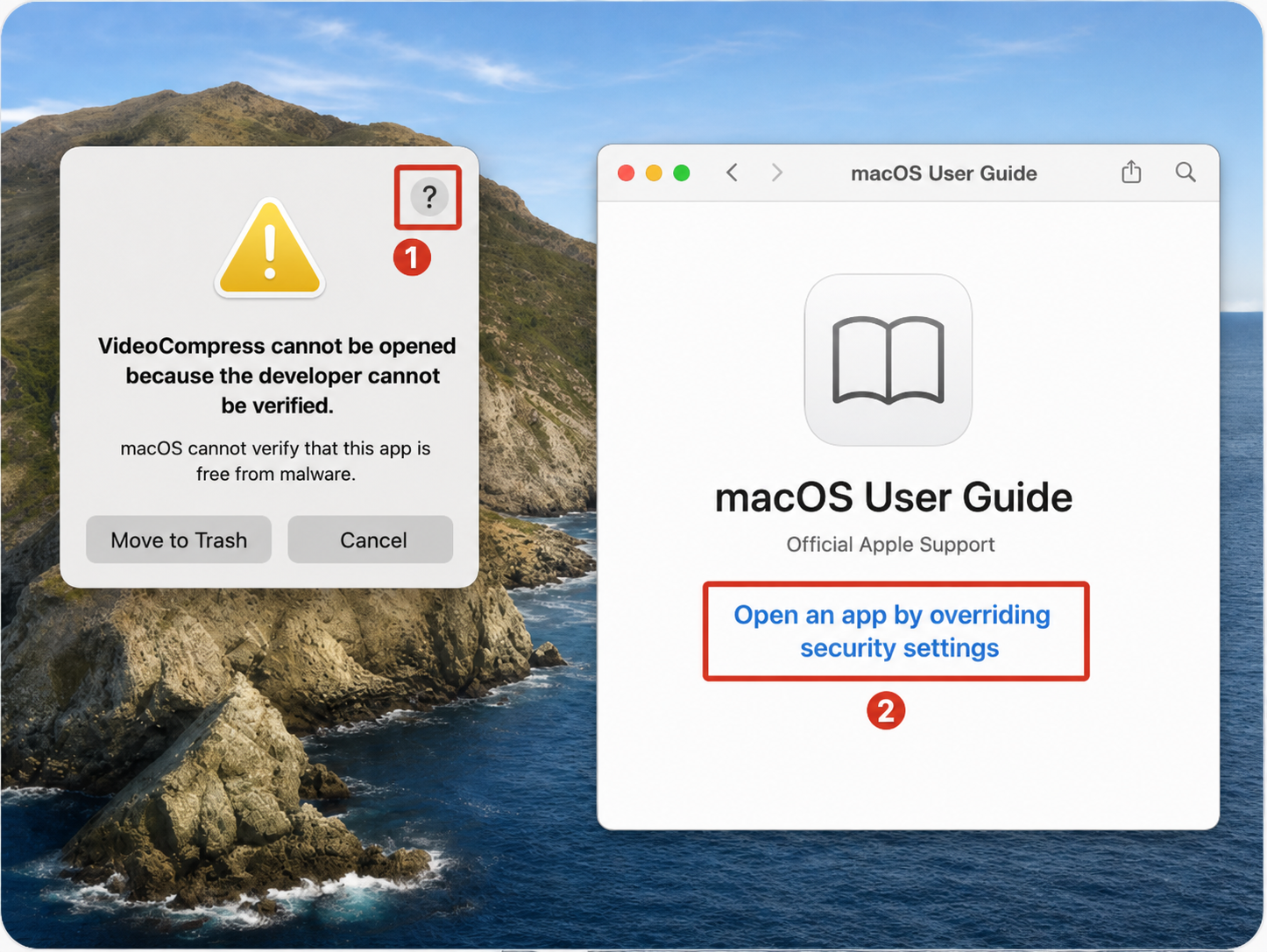
Click the ? button in the warning dialog, then open the macOS User Guide entry about overriding security settings.
Open Applications in Finder. Hold Control, click the VideoCompress icon, and choose Open from the shortcut menu.
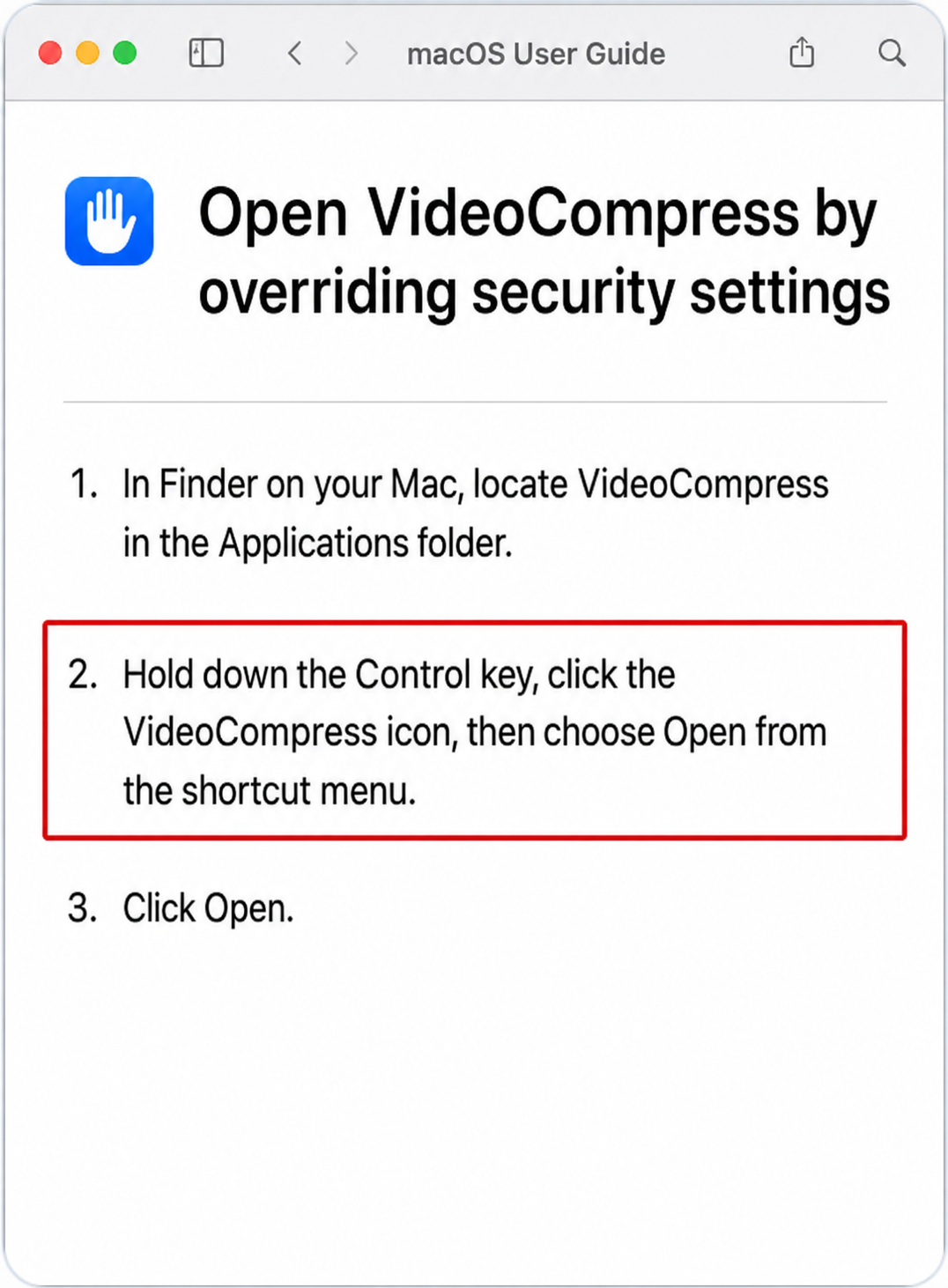
Cancel the original warning if it is still visible, Control-click VideoCompress again, choose Open, and confirm the new dialog.
If Open Anyway is not shown, make sure System Settings > Privacy & Security > Security allows apps downloaded from the App Store and identified developers. Then open VideoCompress again and repeat one of the solutions above.
Only continue if you downloaded VideoCompress from the official VideoCompress website. If the installer came from another source, delete it and download the app again from our website.